Blogger Store

Created for bloggers who want to start an e-commerce or shopping site, Blogger Store is a professional looking template compatible with Paypal or Google Checkout

  • Animated shopping cart
  • Dual dropdown menu bar
  • Automatic featured content carousel
  • Grid and list style post view
Blogger store shopping blogger template

Lightroom Photo Blog Template

A beautiful photo blog template that displays photos in gallery format and is available in two styles basic and advanced

  • Switchable background
  • Attractive theme font
  • Integrated social media icons
  • Left sidebar and navigation menu
Lightroom Photo Blog Template

Magpress

Magazine style theme adapted from wordpress

  • Featured slider section
  • Dual menu bar
  • Tabbed widget
  • 4 column footer
Magpress Magazine style Blog Template

Sens

A simple theme with a clean layout

  • Full width featured slider
  • 4 column footer
  • Social widgets integrated
Sens Blogger template

Pop Out Social Bookmarking Widget

A nice-looking pop out social bookmarking widget that allows readers to share their favorite post easily

  • Neat display
  • Easy to install
Add pop out social bookmarking widget for blogger

The World and Beyond Blog Template edit post

Posted by Bhavika On Friday, March 04, 2011 3 comments
The World and Beyond is a 2 column nature-based template created for blogger by Ezwpthemes.
The World and Beyond nature blog template
Once you upload this template on your blog, you can change the blog title and tag line, then proceed to adding links in the horizontal menu bar. Go to Design--Page Elements, find the top tabs widget, click edit, add the links and save the changes. The menu bar includes a neat RSS icon for your readers to subscribe to the blog and also a welcome note on the right.

While the main column is in a diary form, and each post has social bookmarking icons at the end along with comments. The single sidebar starts with the search box followed by different blogger widgets like archives, recent posts etc.

This theme can be used for nature, science and discovery blog.

Download The World and Beyond Blog Template
Read More or Download this Blogger Template

People Celebrity Blogger Theme edit post

Posted by Bhavika On Saturday, February 19, 2011 2 comments
If you are looking for an entertainment or celebrity template then People blogger theme is apt for you. MJ Bahring has created a blogger version of the celebrity site People.com, its a 4 column theme which includes a photo gallery, featured posts slider, categories with an image display on the home page and much more.
People Celebrity Blogger Theme
Once the blog template is uploaded, you can replace the People logo with yours from Edit Html, search for the url mentioned below -

https://blogger.googleusercontent.com/img/b/R29vZ2xl/AVvXsEiCw73I0oLlvj4RVPMo8JC_xmeMomjm2QfrXMMgTF_WpNG2avgGjTsSwEJ2xiPl6y9Vemp5RS-erEHGDUiJKgqgH29x7jSolUHlPzLWpU_-utElkD5h0QYSvMUlM8DzPoX5gxdKKwIiaY6g/s1600/peoplelogo.png

Below the menu bar you can display featured posts in a slider, just select the label and change it in the below code from Edit Html, you would require minimum of 6 posts for this to work -

label10 = "Kate Hudson";
Title10 = "Kate Hudson";

People template features a photo gallery with captions, in order to get that working, go to Edit Html and look for this code -
<b:section class='middlecol' id='middlecol' preferred='yes'>
<b:widget id='HTML3' locked='false' title='GALLERY' type='HTML'>
<b:includable id='main'>
<!-- only display title if it's non-empty -->
<b:if cond='data:title != &quot;&quot;'>
<h2 class='title'><data:title/></h2>
</b:if>
<div class='widget-content'>
Below this add the following code and change the blog url and also the label (marked in bold) from which the posts need to be pulled out, save the template.

<script language="JavaScript">
imgr = new Array();


imgr[0] = "";
imgr[1] = "";
imgr[2] = "";
imgr[3] = "";
imgr[4] = "";

showRandomImg = true;

tablewidth = 270;
cellspacing = 5;
borderColor = "#fff";
bgTD = "#0b92be";

imgwidth = 270;
imgheight = 300;

fntsize = 14;
acolor = "#FFF";
aBold = true;
icon = " + ";

text = "Komentar";

showPostDate = false;

summaryPost = 0;
summaryFontsize = 12;
summaryColor = "#000";
icon2 = " &rarr; ";

numposts = 3;

home_page = "http://peoplesiteclone.blogspot.com/feeds/posts/default/-/Gallery";

</script>
<script src="http://artist.musikji.net/arthems/recent-categorig.js" type="text/javascript"></script>

Similarly for 'Your category' to display in the right sidebar, you need to add another javascript code given below in Edit Html -

<b:widget id='HTML5' locked='false' title='YOUR Category ...' type='HTML'>
<b:includable id='main'>
<!-- only display title if it's non-empty -->
<b:if cond='data:title != &quot;&quot;'>
<h2 class='title'><data:title/></h2>
</b:if>
<div class='widget-content'>

Insert this code and change the blog url and also the label (marked in bold), save the changes. You can tweak the font size, summary colour etc., in the code to match with your blog.

<script language="JavaScript">
imgr = new Array();

imgr[0] = "https://blogger.googleusercontent.com/img/b/R29vZ2xl/AVvXsEj-PF2lxRlXeRF9316taguQMhokxo9_mO9H8X0Hr2S45TOl-GgwL55UH7Bj26j6N_KMf70MD9ZpEF4XcJLeEMX0kf3AZXMtChDq9ZoyjiUucAbX4ynzGLlDKgGS4cJ6ttG1Tiv91f_6peg6/s1600-r/no-image.png";
imgr[1] = "https://blogger.googleusercontent.com/img/b/R29vZ2xl/AVvXsEj-PF2lxRlXeRF9316taguQMhokxo9_mO9H8X0Hr2S45TOl-GgwL55UH7Bj26j6N_KMf70MD9ZpEF4XcJLeEMX0kf3AZXMtChDq9ZoyjiUucAbX4ynzGLlDKgGS4cJ6ttG1Tiv91f_6peg6/s1600-r/no-image.png";
imgr[2] = "https://blogger.googleusercontent.com/img/b/R29vZ2xl/AVvXsEj-PF2lxRlXeRF9316taguQMhokxo9_mO9H8X0Hr2S45TOl-GgwL55UH7Bj26j6N_KMf70MD9ZpEF4XcJLeEMX0kf3AZXMtChDq9ZoyjiUucAbX4ynzGLlDKgGS4cJ6ttG1Tiv91f_6peg6/s1600-r/no-image.png";
imgr[3] = "https://blogger.googleusercontent.com/img/b/R29vZ2xl/AVvXsEj-PF2lxRlXeRF9316taguQMhokxo9_mO9H8X0Hr2S45TOl-GgwL55UH7Bj26j6N_KMf70MD9ZpEF4XcJLeEMX0kf3AZXMtChDq9ZoyjiUucAbX4ynzGLlDKgGS4cJ6ttG1Tiv91f_6peg6/s1600-r/no-image.png";
imgr[4] = "https://blogger.googleusercontent.com/img/b/R29vZ2xl/AVvXsEj-PF2lxRlXeRF9316taguQMhokxo9_mO9H8X0Hr2S45TOl-GgwL55UH7Bj26j6N_KMf70MD9ZpEF4XcJLeEMX0kf3AZXMtChDq9ZoyjiUucAbX4ynzGLlDKgGS4cJ6ttG1Tiv91f_6peg6/s1600-r/no-image.png";

showRandomImg = true;

tablewidth = 310;
cellspacing = 5;
borderColor = "false";
bgTD = "#fff";

imgwidth = 150;
imgheight = 100;

fntsize = 12;
acolor = "#000";
aBold = true;
icon = " ";

text = "Comment";

showPostDate = false;

summaryPost = 80;
summaryFontsize = 11;
summaryColor = "#000";
icon2 = " &rarr; ";

numposts = 1;

home_page = "http://peoplesiteclone.blogspot.com/feeds/posts/default/-/Hot%20News";

</script>
<script src="http://artist.musikji.net/arthems/recent-categorialbum.js" type="text/javascript"></script>

There are two more javascripts to be inserted in Edit Html in order to get the sidebar working, the code has been given in the download folder under the name 'Installation'.

Download the People Celebrity Blogger Theme
Read More or Download this Blogger Template

Fotofolio Blogger Template edit post

Posted by Bhavika On Friday, January 21, 2011 3 comments
Fotofolio is a 2 column wordpress theme brought to blogger by Wordpress to Blogger. The photo blog theme has a simple, clean layout with white and grey colour scheme.
fotofolio blogger template The home page displays the main image and thumbnail versions of other photos. Adjacent to that you can insert a brief description about your blog or a welcome message for the readers. Go to Design--Edit Html, look for the below code, and simply add your text below this line of code-

<!-- begin welcome text -->

On entering the main post the image displays along side the post title, description, author and date stamp. In order to post images, its necessary to add the following code and insert the relevant links -

<div class="pic"><a rel="http://put-image-url-here" href="http://put-post-url-here"><img src="http://put-image-url-here" /></a>Put image description here</div>

Fotofolio also includes a 3 column footer where you can insert your categories, archives and various blogger widgets. Overall, its a decent theme to use for photo blog, however, the navigation bar is missing, so you can make use of the footer column.

Download the Fotofolio Blogger Theme
Read More or Download this Blogger Template

Improving Blogger SEO with Valid Meta Content edit post

Posted by Clyde On Wednesday, January 12, 2011 9 comments
meta content description shown on search engineMost of us would have already heard of meta descriptions and keywords and the role they play in helping search engines appropriately describe your site.

Well even if you haven't take a look at a screen shot of the description of our site on google, the part circled is the meta description. You have the power to control what a person sees when they come across your site on a search engine. Wouldn't you want to put in some text there to attract every person who sees it.

Anyone would, except that with blogger there seems to be a problem, with the default easy method, as shown by Blogger Tricks.

By only putting

<meta content='Your Blog Description Here' name='description'/>
<meta content='Your Blog Keywords Here' name='keywords'/>
<meta content='Your Name Here' name='author'/>

after

<b:include data='blog' name='all-head-content'/>

it applies the meta keywords and tags to the entire blog and not just the home page, this will interfere with your SEO for all the posts on your blog as it will stuff this description and keywords for each post thus having a negative effect on your blog instead of a positive one.

So instead of choosing to use this method or if you have already used the above method there is a simple fix, all you need to do is add a little snippet of code that will make the meta content only display for the home page or index page for the search engines.

Blogger Meta Tags
<b:if cond='data:blog.url == data:blog.homepageUrl'>
<meta content='Your Blog Description Here' name='description'/>
<meta content='Your Blog Keywords Here' name='keywords'/>
<meta content='Your Name Here' name='author'/>
</b:if>


The solution to this was brought to us by Blogger Stop, we just implemented it on Blogger Blog Templates and have shared it with you as well. We previously did have meta tags as well, using the older method it worked fine on this blog which has related content on each page.

But on a blog with a variety of content we had to remove the meta content, but thanks to this method we have made our blogs more SEO friendly.
Read More or Download this Blogger Template

Blogger Evening Blogspot Theme edit post

Posted by Bhavika On Thursday, January 06, 2011 0 comments
Blogger Evening is a 3 column free theme created by Chica Blogger. The template has a clean layout, a slider on the home page and 3 column footer.
Blogger Evening Blogspot Theme
It has a colorful header space to insert your blog logo, on the right of it is the internal search box and a horizontal menu bar below it for the category, contact page etc. In order to change the header logo, access Edit Html, search for this image url and replace it with your blog logo.

https://blogger.googleusercontent.com/img/b/R29vZ2xl/AVvXsEiTzbe3aByKB3grPii3ohEJa8sCA0r8waeA7jn6jw8oMegzcadHkcPpGT3dKhs4rSZSLuXdR8u3Vdi7f4AwvDd1lgTgh6SeLekVv-GgCphghVsFHyRwoCOFtANLh7XxF4S9W4K4fIsTNAba/s1600/logo.png

The slider allows you to showcase your top/featured posts, which you can modify from Design--Page Elements and paste the code from the file named as "Slideshow code.txt" in the download folder.

While the sidebar includes social networking icons that allow readers to subscribe to your blog content. Simply go to Design--Edit Html and look for the below code, you can change the icons, add the relevant links and save the changes -

<a href=''><img src='https://blogger.googleusercontent.com/img/b/R29vZ2xl/AVvXsEiR36bMihduMQTXUQ9KGktmn-EygdRdN-weReCKNNktuZ0njfB03G62BP5EXAqWhFdZC2OQ71YXWcDb9o0jBs425P2kt7jVOhvtVfWg44rANQtdLYRMolcBYdunkJXWHBJl6dZwxWobDoNA/s1600/facebook.png' title='Facebook'/></a>

<a href=''><img src='https://blogger.googleusercontent.com/img/b/R29vZ2xl/AVvXsEgCBFJmmnXgg-YxDcLmn0Uk3Kq_FNhv1tg0YWJ9sQx2A7JKXvK4UheIrZcZTvmdwokXPiWY_SPN_BS9Ndxy_j6lVZ0d9UmjoDOWp8kTU5atVRGQOuM2na8e2r2A-QQd3pev9PznjMCJr_Ff/s1600/rss.png' title='Subscribe'/></a>

<a href=''><img src='https://blogger.googleusercontent.com/img/b/R29vZ2xl/AVvXsEhTCgPXazZR4lBWE7OgLYy-1SCj1nZDrxmWvL_7VhMcjhOlvBrTgqZ5gcBH25bbpkFeHfpBnO5fmcE-EStNHqP0bvnAPslHSCk-h9SKhDiATqMr8Gy6RE6bziHceP7OfWdV7LUq7Ms5PGDI/s1600/twitter.png' title='Follow me'/></a>

<a href=''><img src='https://blogger.googleusercontent.com/img/b/R29vZ2xl/AVvXsEgglzzOz6ZySJHBaw-aYUFRfJnRCaB9Xz9oQTB7e_rmS0c4pPW0UtwWX0xX248c67xl6aZr5UW6hovr1B8ytFdtw_aJnMnx9SsXbnBFzlRdT78z6ctA77FoLkzfWM8afYSHngBoVId1Ugyv/s1600/flickr.png' title='My Flickr'/></a>

<a href=''><img src='https://blogger.googleusercontent.com/img/b/R29vZ2xl/AVvXsEh-99KOgfDtC1NDl_Q3sdjX7ClvL02v0dqBBCUg9txniQ7zAuBypCUDAqk-tCiVOwT80NXQsdI2M7Nnb3KTrNqfxC39kOPaNmTIG6Agm_eopmCXM9NyDP_35xLF70ohFh2mESGmb7aOVVTI/s1600/technorati.png' title='Technorati'/></a>

The sidebar splits into two more columns, and that along with the 3 column footer gives you enough space to display your different blogger widgets.

Download the Blogger Evening Blogspot Theme
Read More or Download this Blogger Template

Recent Posts with Thumbnails Hack for Blogger edit post

Posted by Bhavika On Wednesday, December 08, 2010 12 comments
recent posts with thumbnailsRecent Posts with Thumbnails is an interesting hack that allows you to display your latest posts in various styles. Of course, Blogger has the Recent Posts with Thumbnails gadget, but this hack gives you more flexibility and options to choose from. Another default Recent Posts widget pulls content from your RSS feed and shows only the post titles.

But thanks to Marianne, who was responsible for this Blogger hack, your site can look great.

Before you make any changes, take a backup of your template from Design --> Edit Html.

Then copy paste the below code in Design --> Page Elements section of your blog.
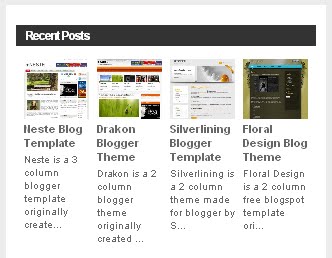
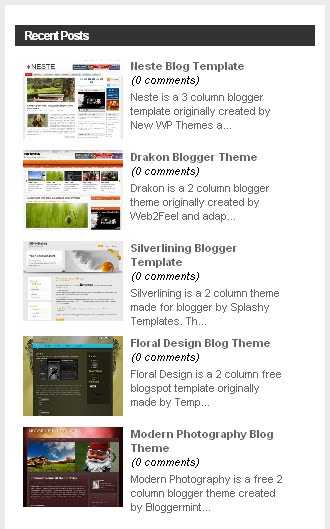
recent posts with thumbnails horizontal
<script language="JavaScript">
imgr = new Array();


imgr[0] = "http://YOURIMAGEURL.jpg";
imgr[1] = "http://YOURIMAGEURL1.jpg";
imgr[2] = "http://YOURIMAGEURL2.jpg";
imgr[3] = "http://YOURIMAGEURL3.jpg";
imgr[4] = "http://YOURIMAGEURL4.jpg";

showRandomImg = true;

tablewidth = 278;
cellspacing = 8;
borderColor = "#ffffff";
bgTD = "#ffffff";

imgwidth = 100;
imgheight = 80;

fntsize = 11;
acolor = "#666";
aBold = true;
icon = " ";

text = "comments";

showPostDate = false;

summaryPost = 75;
summaryFontsize = 11;
summaryColor = "#666";
icon2 = " ";

numposts = 5;

home_page = "YOUR-BLOG-URL";

</script>
<script src="http://fractalblognetwork.com/blogumus/vertical_title_desc_no_comments.js" type="text/javascript"></script>
To run you through the script, you can add your own image url here 'http://YOURIMAGEURL.jpg' for articles without an image. You can add imgr[1] [2] etc., as per your requirement. You can adjust the image size, background colour, post title colour, summary colour, font size, number of posts to be showed and so on in the code. Add your blog url at the place where it is mentioned in the code and at the end of the code there is a javascript file -'http://fractalblognetwork.com/blogumus/vertical_title_desc_no_comments.js' (marked in bold) which can be hosted on your server or any other site.
recent posts with thumbnails and commentsAs mentioned earlier this Recent Posts gives you lot of variations in terms of display, for instance you can have horizontal or vertical display, with or without comments, thumbnails with description etc. I have mentioned below the different javascript files available and based on your choice upload it your server or file hosting sites and add the js link in the above code and save the changes.

- Recent posts in horizontal position with only thumbnails
- Recent posts in vertical position with only thumbnails
- Recent posts in horizontal position with thumbnails, title, description and comments
- Recent posts in vertical position showing thumbnails, title, description and comments
- Recent posts in horizontal position showing thumbnails, title, description and without comments
- Recent posts in vertical position showing thumbnails, title, description and without comments
- Recent posts in horizontal position showing thumbnails with title, description from any particular label
- Recent posts in vertical position showing thumbnails with title, description from any particular label
- Recent posts in horizontal position showing thumbnails with title, description in between thumbnails instead of below thumbnail

In case of recent posts with thumbnails from any particular label/tags/categories, insert this line in the above code after -

'home_page = "YOUR-BLOG-URL";'

label = "tagname";

Recent Posts with thumbnails hack certainly enhances the look of your blog!
Read More or Download this Blogger Template

Neste Blog Template edit post

Posted by Bhavika On Monday, December 06, 2010 5 comments
Neste is a 3 column blogger template originally created by New WP Themes and ported to blogger by Premium Blogger Templates. The theme includes a featured slider, dual menu bar and featured video section.
neste 3 column free blog template
The header space starts off with the horizontal menu bar on top right, followed by the blog logo and the second menu bar below it. You can add your blog logo and title in Page Elements--Edit section, the image size must be 286px width and 68px height.

The main column features the slider to display your top content. Modify the content of the slider from Edit Html and look for the below code -

<div id='myGallery'>

<div class='imageElement'>
<h3>This is featured post 1 title</h3>
<p>Replace these every slider sentences with your featured post descriptions.Go to Blogger edit html and find these sentences.Now replace these with your own descriptions.This theme is Bloggerized by Lasantha - Premiumbloggertemplates.com.</p>
<a class='open' href='SLIDER-1-URL-HERE' title='This is featured post 1'/>
<img alt='' class='full' src='https://blogger.googleusercontent.com/img/b/R29vZ2xl/AVvXsEgIsgsGs2ddDNdRCH4vmvbjGWnrey4-AVdiDRR99zSk34rABc9O3HkzbNXsUX8RAb5n_-0sapXaBHB2Eh3Vc4u-CDyJxDZkq8tcqBPOesH1HKSXVNY0jgVC7sBgNI8FvrOWFaZa_XNUoLOy/s1600/1.jpg'/>
</div>
Replace the text in the code with the post title, description, post link and image, which has to be 480px by 280px. Follow the same steps for each slide and save the changes.

The second column includes a set of social bookmarking icons to facilitate readers to share your content on various social media sites, this is followed by an internal search box and featured video section. While the third column, which is a bit narrow, includes 'Subscribe to feed' and 'Follow on Twitter' option and the default blogger widgets.

Download the Neste Blog Template with slider

Its also available without the slider - Download the Neste Blog Template without the slider
Read More or Download this Blogger Template

    Recent Templates

    Recent Comments

    Video Guides